


Ever attempted to wrestle an octopus? That’s how I felt the first time I tried using my tablet as a second monitor. There I was, tangled in a mess of cables and settings, squinting at my screen like it was a cryptic crossword. It’s the kind of problem that makes you question all the life choices that led you to this digital quagmire. I mean, sure, the promise of increased productivity dangles in front of you like a carrot, but you soon realize it’s more like a carrot cake—tempting, but ultimately not worth the hassle if you’re allergic to nuts. But here I am, having survived the ordeal, ready to spill the beans on this convoluted process.
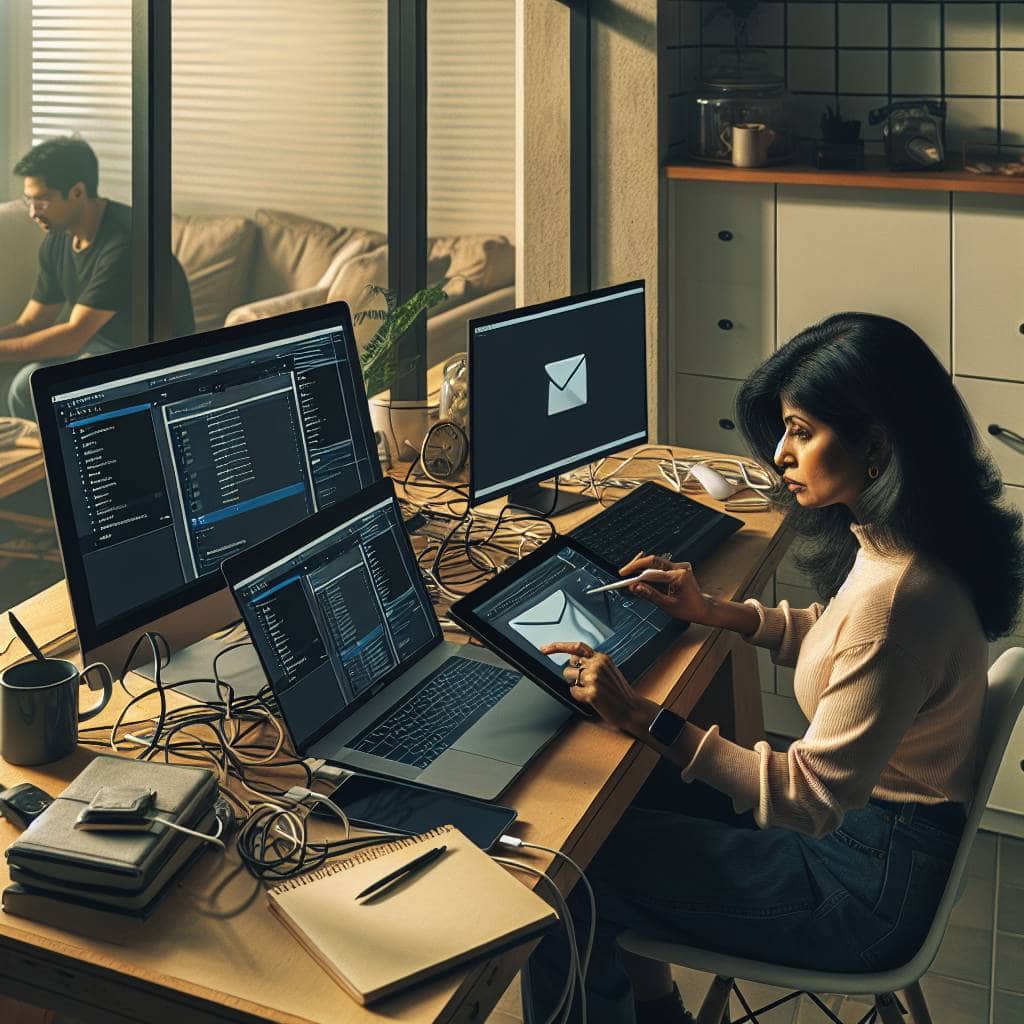
Stick with me, and I’ll guide you through this labyrinth. We’ll explore everything from Apple’s smugly named Sidecar feature for Mac/iPad loyalists to the third-party saviors like Duet Display. Whether you’re going for the tethered comfort of a wired connection or the seductive chaos of wireless, there’s a method to this madness. And yes, there are productivity benefits—real ones, not the kind that just look good on paper. We’ll cut through the fluff and get down to the gritty details, so you can decide if doubling your screen space is worth the potential headaches. Spoiler: it just might be.
Table of Contents
My Lifelong Struggle With built-in
Ah, the allure of the built-in feature—a siren’s call promising seamless integration and effortless functionality. But let me tell you, my relationship with anything labeled “built-in” has been more of a rollercoaster than a love story. You see, when Apple first unveiled Sidecar, the gleaming promise of turning an iPad into a second monitor for my Mac felt like a dream come true. I imagined the ease of dragging windows across screens as if I was conducting a digital symphony. But reality hit me like a poorly timed software update. The built-in features, often hailed as consumer-friendly, can sometimes be as reliable as a paper umbrella in a monsoon. Connectivity issues, lag, and the occasional refusal to pair—these are the hidden gremlins lurking beneath the shiny surface of Apple’s marketing gloss.
Now, don’t get me wrong. Built-in features have their moments of glory. When they work, they can make you feel like a tech wizard casting spells with the flick of a finger. But the problem with relying on built-in solutions is they often leave you stranded when you least expect it. That’s where third-party apps like Duet Display come into play. They’re the unsung heroes, stepping in when Sidecar decides to take an unscheduled vacation. Sure, they might require a wired connection for optimal performance, but at least they get the job done without the melodrama. So, while the idea of a wireless, built-in utopia remains enticing, my lifelong struggle has taught me that sometimes, you just need a reliable sidekick, even if it means straying from the path of so-called convenience.
Maximizing Chaos with Extra Screens
Turning your tablet into a second monitor is like adding a sidecar to a motorcycle—sure, it looks cool, but do you really need another way to distract yourself? Whether you’re using Sidecar or a third-party app like Duet Display, wired or wireless, the real benefit lies in pretending you’re working harder while actually just doubling the digital mayhem.
The Great Gadget Gamble
So here I stand, the digital swordsman, having battled the demons of connection drops and third-party app crashes, with my tablet now conscripted as an auxiliary screen. I’ve learned that turning a tablet into a second monitor is less about productivity and more about the art of war. Because, let’s face it, nothing screams ‘efficiency’ like juggling a wired mess, hoping your wireless connection doesn’t decide to take a coffee break mid-project.
In this brave new world of tech alchemy, I’ve discovered a truth—sometimes built-in features are like unicorns; they sound magical but rarely deliver without a catch. And while the likes of Sidecar and Duet Display promise a seamless experience, reality often laughs at our plans. Yet, amidst the chaos and frustration, there’s a peculiar satisfaction in watching your digital empire expand, even if it’s just by a few more inches of screen. It’s a gamble, but one that makes the endless scroll worth the ride.